
FAQ’s
- Download the plugin zip from your purchase email or from Login on this site.
- In WordPress go to Plugins → Add New → Upload Plugin, choose the zip and click Install Now, then Activate. (Or unzip it and upload the folder to
wp-content/plugins/.) - Open Gift Cards Pro → Plugin License, paste the license key from your order and click Activate. The key unlocks updates, support and the AI backgrounds.
- Go to Gift Cards Pro → Settings to enter your company details, payment gateways and email texts.
If the free “Gift Cards (Gift Vouchers and Packages)” plugin is installed, deactivate it first (see the next question).
Deactivate the free plugin first, then install and activate Gift Cards Pro. Your templates, gift items and sold vouchers stay in the database, and Pro picks them up automatically.
- Single website, €49: one site, updates and support for 1 year.
- Unlimited websites, €79: any number of sites you own, updates and support for 1 year.
- Lifetime & unlimited websites, €99: any number of sites, updates and support for as long as the plugin exists.
All licenses are one-time payments with a 30-day money-back guarantee. The plugin keeps working after the update period ends; renewing only restores updates and support. You can move a license to another site at any time from Gift Cards Pro → Plugin License.
Yes. Activate the plugin per site (not network-wide) so every shop keeps its own templates, settings and vouchers. An Unlimited or Lifetime license covers all sites of your network.
No. Deactivating keeps all templates, gift items, orders, voucher codes and balances in your database; they are back the moment you activate the plugin again. You can also export the whole voucher database from Gift Cards Pro → Purchase History → Export Database at any time.
A current WordPress installation with PHP 7.4 or newer (PHP 8.x recommended). WooCommerce is optional: Gift Cards Pro sells vouchers on its own with its built-in booking forms and payment gateways. If WooCommerce is installed, you can additionally sell gift cards as WooCommerce products and let customers redeem vouchers in the WooCommerce cart and checkout.
Create a page and add one of these shortcodes. The plugin renders the whole purchase flow on it (template, personalisation, payment, overview):
[wpgv_giftcard_modern]: Giftcard modern, the visual template builder with categories, portrait/landscape formats and live preview.[wpgv_giftcard_standard]: Giftcard standard, the classic PDF vouchers in a grid or list view.[wpgv_giftitems]: gift items and packages with fixed prices (a massage, a dinner for two, a course…).[wpgv-check-voucher-balance]: a page where customers check the remaining balance of a code.

Try it live on the demo page.
Out of the box: Stripe (cards, Apple Pay/Google Pay, SCA-ready), PayPal, Klarna, Mollie, MultiSafepay, Sofort and bank transfer / invoice (the customer pays to your account and you mark the order as paid). Enable and configure them under Gift Cards Pro → Settings. When you sell gift cards as WooCommerce products, every payment method of your WooCommerce checkout works as well.
Every voucher gets an automatically generated, unique 16-digit code. It is printed on the PDF voucher (optionally as a barcode for scanning at the counter) and the customer enters it when redeeming. Codes are checked against your database, so they cannot be guessed or reused beyond their balance.
After a successful payment the voucher is generated as a PDF and emailed to the recipient address entered during checkout; the buyer receives a receipt. Customers can also download the PDF from the confirmation page and, with WooCommerce, from My Account. You see every delivery, its status and retries in Gift Cards Pro → Email Center and can resend a voucher with one click.
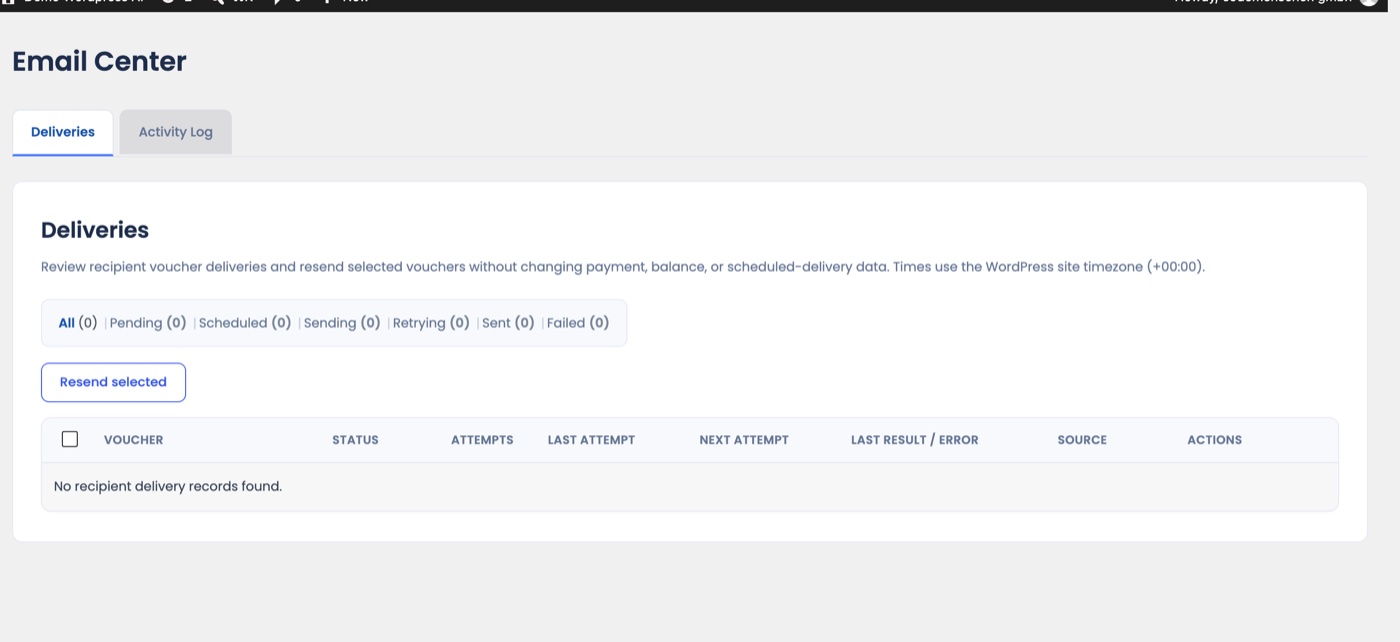
Yes. During checkout the buyer can choose a delivery date, e.g. the recipient’s birthday, and the plugin sends the voucher email on that day. Scheduled sending uses the timezone in Settings → General → Timezone and WordPress’ cron, so make sure wp-cron.php runs regularly on your server (most hosts do this by default). Scheduled and sent deliveries are listed in the Email Center.
Yes. Enable postal delivery in the settings and customers can order a printed gift card shipped to the recipient; you set the shipping fee. The order appears in Purchase History with the postal address so you can print the PDF and send it.
Yes. Under Gift Cards Pro → Settings → Email Settings you edit subject and body of the emails sent to customers, recipients and yourself, with placeholders for the buyer’s name, voucher code, amount, expiry date and more. The PDF voucher itself is styled by the template you design, and invoices have their own settings page.
Both. Expiry can be a fixed date or a number of days after purchase, or you can remove the expiry date completely. The price can be hidden on the PDF (useful for gift items and experiences), and you can add a personal message that is printed on the voucher. You can also charge a commission on top of every voucher order.
On the classic cart and checkout pages the customer either enters the code in the plugin’s gift voucher box or in WooCommerce’s coupon field. Both work. The WooCommerce Cart Block and Checkout Block are supported as well. The voucher amount is deducted from the order and the remaining balance stays on the code. The dedicated gift voucher box can be shown or hidden in Settings → Woo Settings.
The remaining amount stays on the code and can be used for later purchases until it is used up or expired. Customers see their balance in My Account (WooCommerce) or on your balance-check page ([wpgv-check-voucher-balance]). You can look up and adjust any balance in Gift Cards Pro → Check Voucher Balance, for example after an in-store purchase.
Yes. Print the barcode on the voucher, scan or type the code in Gift Cards Pro → Check Voucher Balance, and reduce the balance by the amount spent. Every adjustment is logged with the order it belongs to, and Purchase History shows the full amount, the credit left and the orders the voucher was applied to.
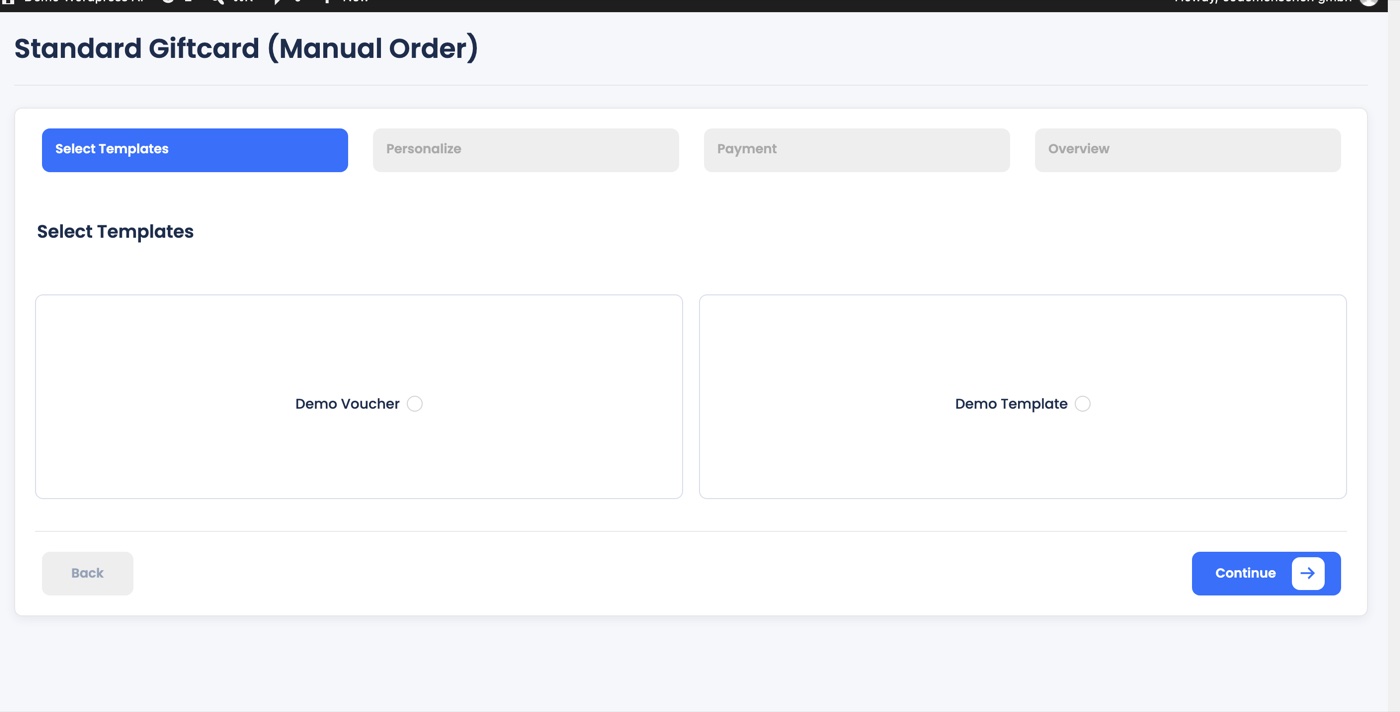
Yes. Gift Cards Pro → Standard Giftcard (Manual Order) opens a four-step wizard: choose a template, personalise it, pick the payment method (or mark it as paid) and review. The voucher is created with a code and PDF exactly like an online order and can be emailed to the recipient right away.
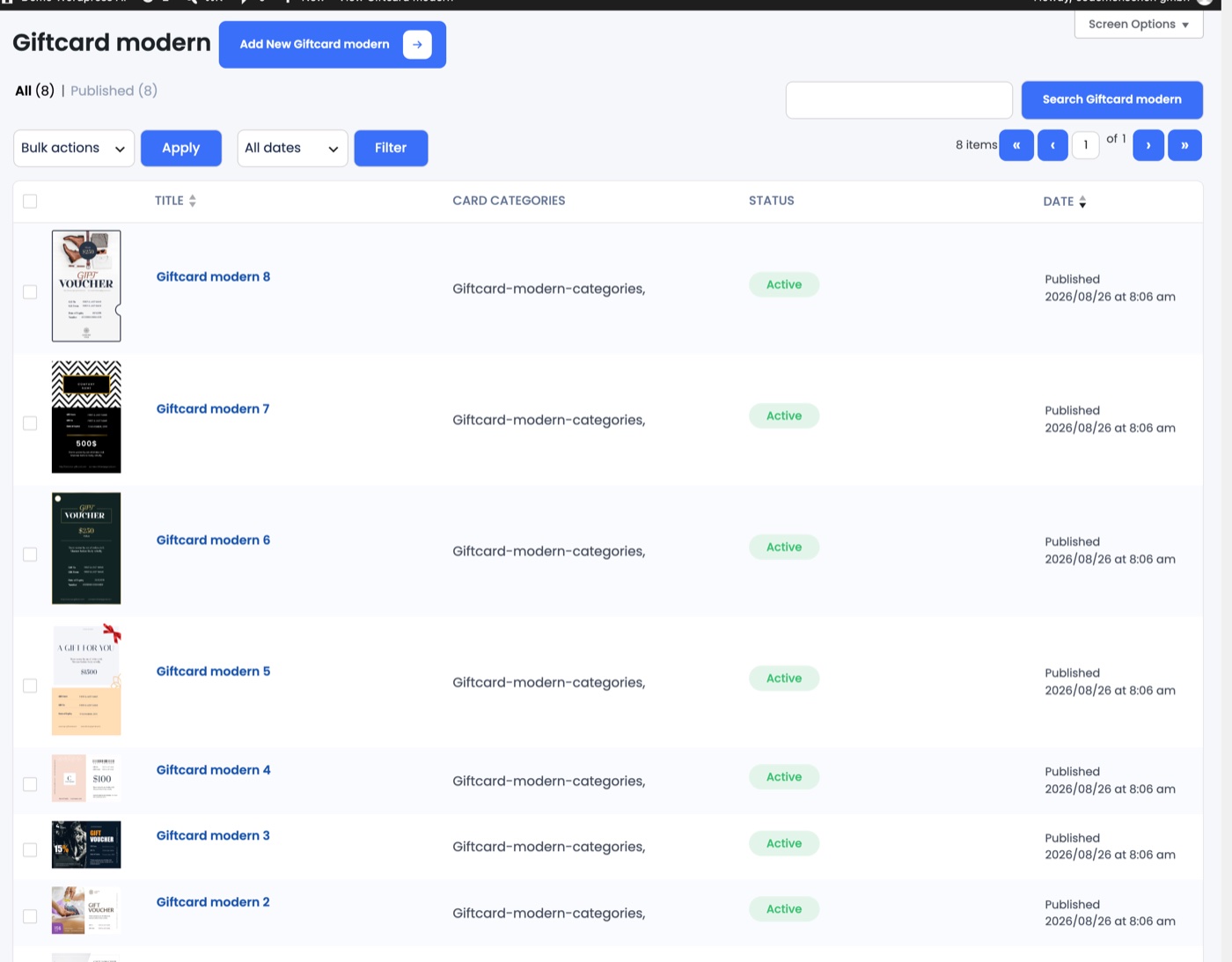
Yes. Giftcard modern templates are built in the plugin’s template builder: upload a background (or generate one with AI), place your logo, value, name, code and expiry date, pick colours and fonts, and preview the result live. Group templates into unlimited categories (Birthday, Christmas, Wellness…) so customers can filter them. Giftcard standard offers three classic PDF layouts that you brand with your logo and image.
Since version 4.7 the Create Template page has a Generate with AI tab next to Upload image. Describe the background you want in one sentence, for example “New Year’s Eve, champagne glasses and golden bokeh”, choose a style (Photo, Illustration, Abstract) and the card format. The Codemenschen AI service renders matching background images in a few seconds. Pick one and it is placed in the template builder straight away; every render is saved to your media library with its prompt, so you can reuse it for free.

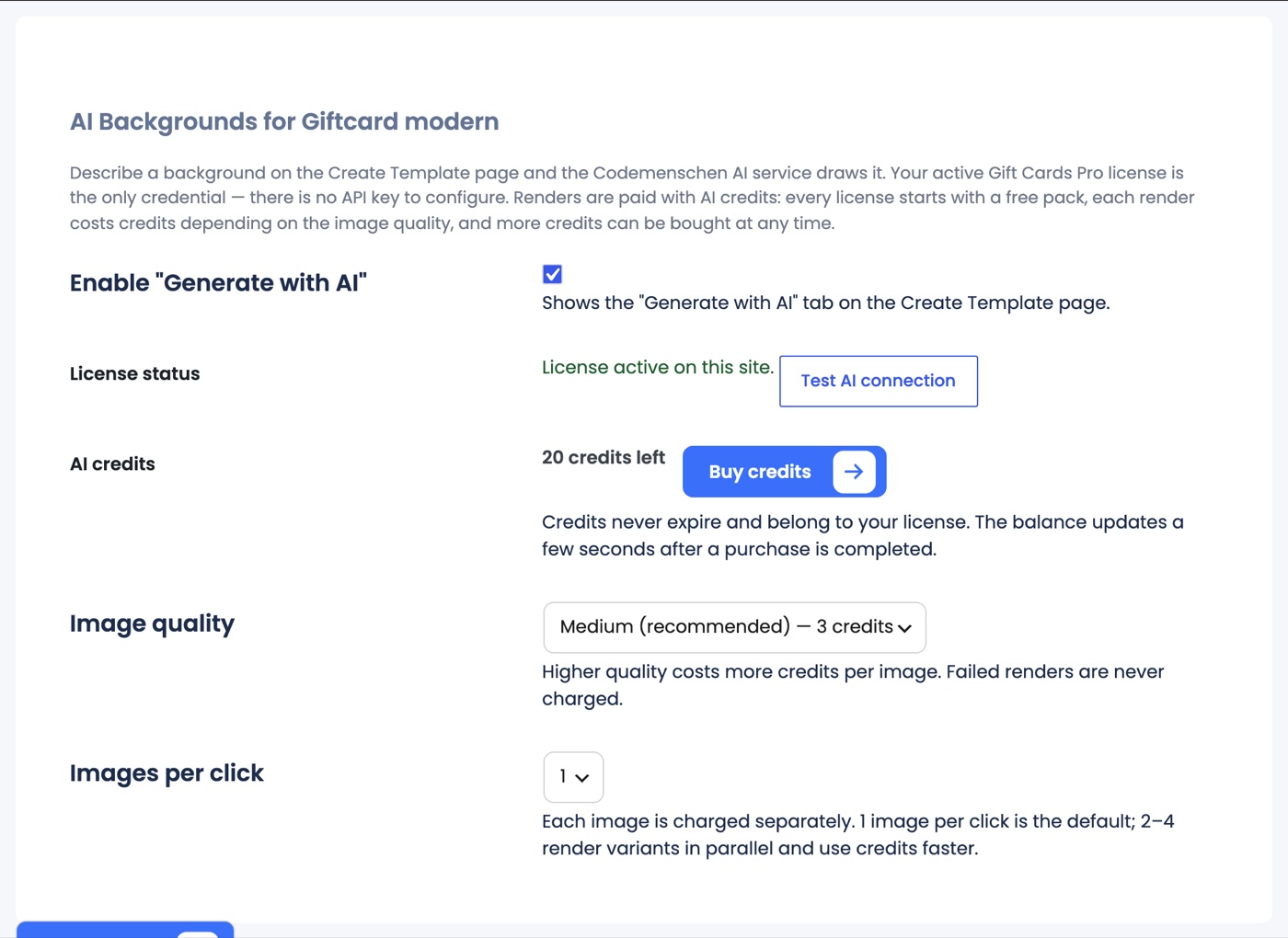
The feature is switched on under Gift Cards Pro → Settings → AI Backgrounds, where you also choose the default image quality, the number of images per click and can test the connection.
AI renders are paid with AI credits that belong to your license. Every license starts with 20 free credits. One image costs 1 credit in low quality, 3 credits in medium (recommended) and 10 credits in high, print-ready quality. You choose the quality before each render. Failed renders are never charged.
When the balance runs low, click Buy credits in the panel or in the settings: packs of 100 (€9), 300 (€19) and 1,000 (€49) credits are sold on our AI credits page and are added to your license automatically a few seconds after payment. Credits never expire.
No API key and no extra account: your active Gift Cards Pro license is the only credential. The plugin sends your description, the chosen style and format and your site address to the Codemenschen AI service, which generates the image and returns it to your site. No customer or order data leaves your WordPress. Generated images are stored in your own media library and belong to you.
Gift Cards Pro ships with complete translations for German, French, Spanish, Italian, Dutch, Portuguese (Brazil), Polish, Czech, Danish, Swedish, Russian, Hindi and British English, and works with WPML and Polylang. To change a text or add another language use the free Loco Translate plugin or edit the .po files with Poedit.
The full documentation with step-by-step guides is at wp-giftcard.com/docs. For questions, bug reports or feature requests open a ticket via Support or write to developerweb@codemenschen.at. Please include your site URL and license key. Support and updates are included for the period of your license.