
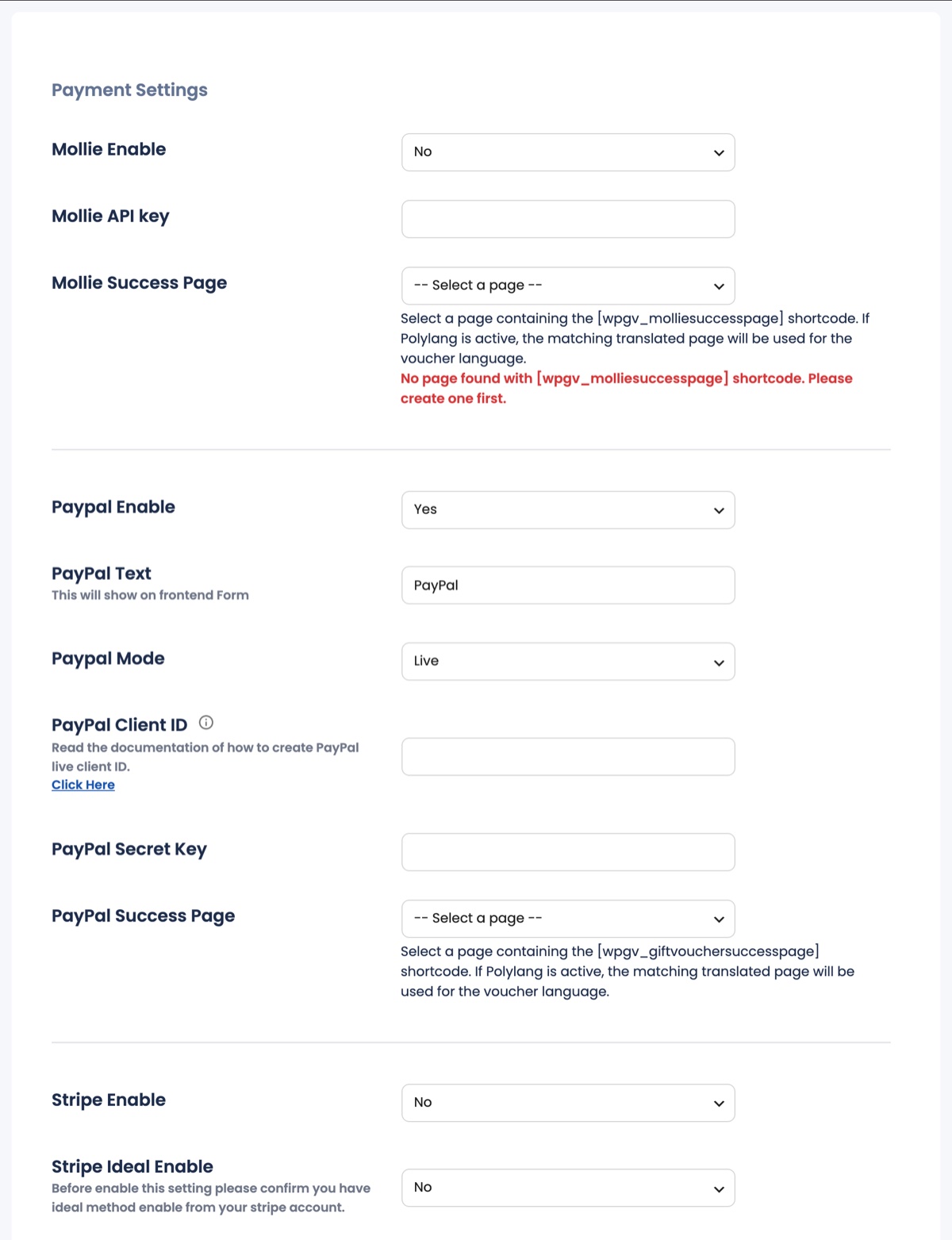
Enable the gateways you want to offer; each enabled gateway appears as a payment option in the purchase flow. For every gateway select the page that contains its success shortcode (see Payment successful pages).
Stripe
- Set Stripe Enable to Yes and choose Stripe Payment Mode (test/live).
- Copy Publishable key and Secret key from Developers → API keys in your Stripe dashboard.
- Copy the Stripe Webhook URL shown in the settings, create an endpoint under Developers → Webhooks in Stripe with the event
checkout.session.completed, and paste its Signing secret into the settings. The webhook is what marks the voucher as paid even if the customer closes the browser. - Optional: Stripe iDEAL Enable (activate iDEAL in your Stripe account first).
PayPal
Set Paypal Enable to Yes, choose the Mode (sandbox/live) and enter Client ID and Secret of a REST app from developer.paypal.com. PayPal Text is the label shown on the form.
Klarna, Mollie, MultiSafepay, Sofort
Each has an Enable switch, test/live mode and the credentials from the provider’s merchant portal (Klarna merchant ID + shared secret, Mollie API key, MultiSafepay API key, Sofort configuration key). Klarna Market Override forces a country when your shop sells across borders.
Bank transfer / invoice
Bank Transfer Enable lets the buyer order first and pay later. Enter your Bank Details and the Reason for Payment; they appear on the success page and in the “Buyer Email Body for Bank Transfer”. Such vouchers stay Not paid (and cannot be redeemed) until you mark them as paid in Purchase History. Send Direct Mail sends the voucher immediately instead of waiting for the payment.