
images
  • Pricing
  • Demo
  • FAQ’s
  • Docs
  • Support
  • Login
Buy now

Install the plugin and activate the license

Documentation

  • Getting started
    • Download the free version
    • Buy and download Gift Cards Pro
    • Install the plugin and activate the license
    • System requirements and compatibility
  • Plugin pages and shortcodes
    • Giftcard modern page
    • Giftcard standard page
    • Gift items page
    • PDF preview pages
    • Payment successful and cancelled pages
    • Check voucher balance page
  • Plugin settings
    • General settings
    • Payment settings
    • WooCommerce settings
    • Email settings
    • AI Backgrounds settings
  • Design templates and gift items
    • Giftcard modern templates
    • Create a template with the builder
    • Generate backgrounds with AI
    • AI credits
    • Giftcard standard templates
    • Gift items and packages
    • Categories
  • Display booking forms
  • Orders and vouchers
    • Manual orders
    • Email Center
  • Redeem vouchers
    • Via WooCommerce
    • In person
  • FAQ
  • Video guide
  • Changelog
  1. Home
  2. Docs
  3. Documentation
  4. Getting started
  5. Install the plugin and activate the license

Install the plugin and activate the license

Install

  1. In WordPress open Plugins → Add New → Upload Plugin, choose the downloaded zip and click Install Now.
  2. Click Activate. A new menu Gift Cards Pro appears in the admin sidebar.

Alternatively unzip the file and upload the folder gift-voucher-pro to wp-content/plugins/ via FTP, then activate it on the Plugins page.

Activate the license

  1. Open Gift Cards Pro → Plugin License.
  2. Paste the license key from your purchase email and click Activate License. The status changes to active.

The license enables automatic updates, support and the AI backgrounds. A Single-site license can be moved: click Deactivate License on the old site, then activate the key on the new one.

Create the plugin pages

Go to Gift Cards Pro → Settings and click Create Plugin’s Default Pages. This creates the pages the plugin needs (gift card form, payment successful, payment cancelled, check balance) with the right shortcodes (see Plugin pages). Then fill in Company name, Company logo and Currency on the General Settings tab and you are ready to design your first template.
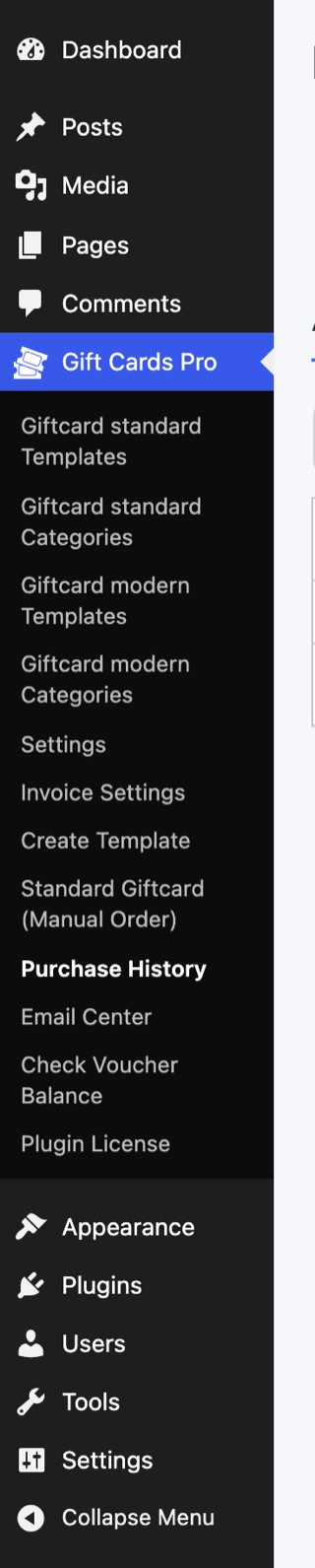
The Gift Cards Pro menu in the WordPress admin: templates, categories, settings, invoice settings, voucher products, manual order, purchase history, Email Center, check voucher balance, plugin license
Updated on August 29, 2026

Doc navigation

← Buy and download Gift Cards ProSystem requirements and compatibility →
images
    • Pricing
    • Demo
    • FAQ’s
    • Docs
    • Support
    • History
    • Blog