
The Woo Settings tab connects the plugin to WooCommerce.
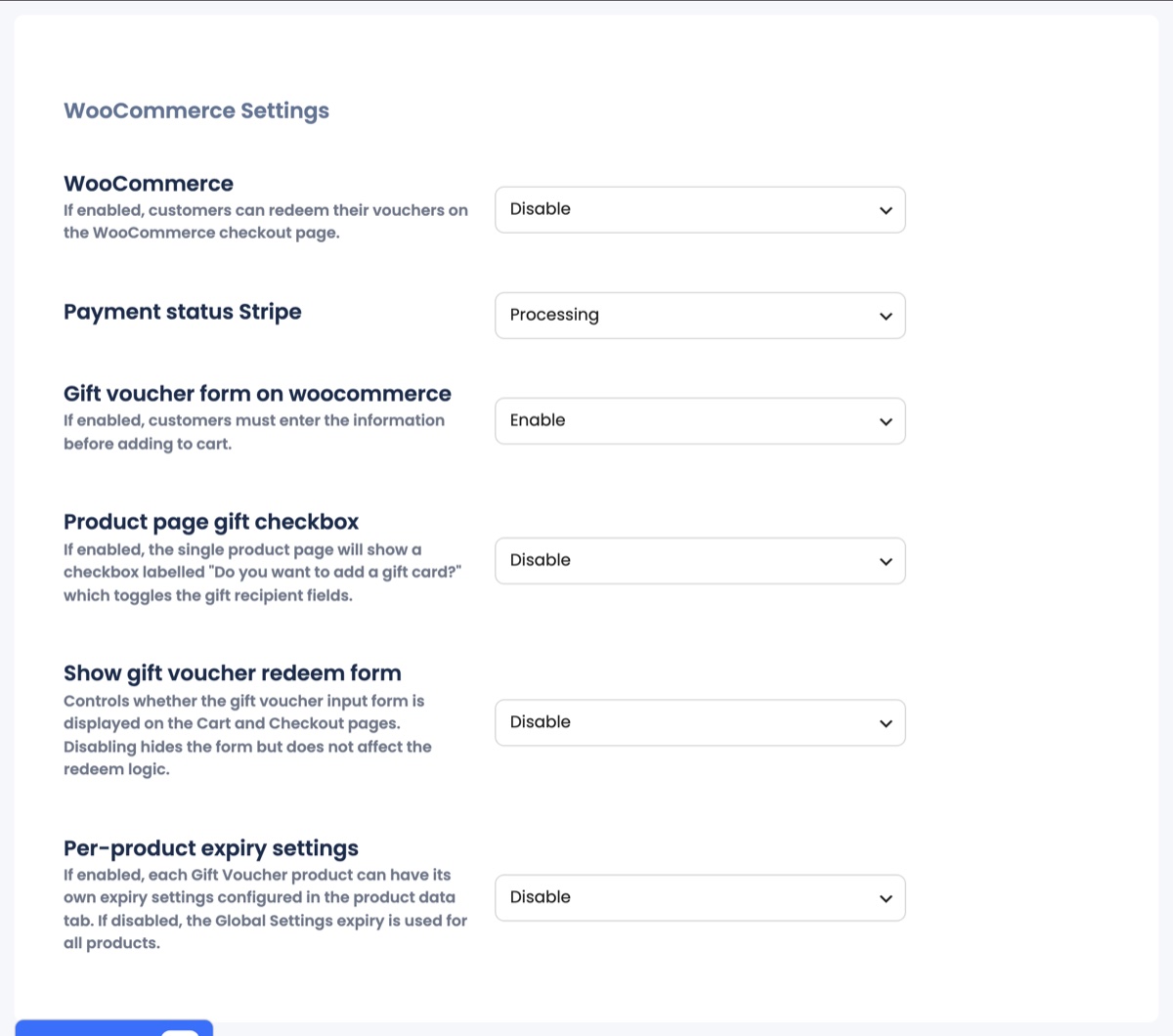
- WooCommerce: master switch. Enabled: customers can redeem vouchers in the WooCommerce cart and checkout and see balances under My Account.
- Payment status Stripe: which WooCommerce order status counts as paid.
- Gift voucher form on woocommerce: customers must fill in the voucher details (recipient, message) before a gift card product is added to the cart.
- Product page gift checkbox / Show checkbox for products: a “Do you want to add a gift card?” checkbox on normal product pages.
- Add Gift Card price to cart total, Template orientation filter, Allowed templates: control the gift-card products.
- Show gift voucher redeem form: show or hide the plugin’s own redeem box on cart and checkout. Hidden, customers still redeem through WooCommerce’s coupon field.
- Per-product expiry settings: let each gift voucher product override the global expiry.
Selling gift cards as WooCommerce products
- Open Gift Cards Pro → Add Gift Voucher Product, enter title, short description, one or more prices (comma-separated) and an image.
- The product appears under Gift Cards Pro → Voucher Products and as a WooCommerce product; publish it and add it to your shop pages like any other product.
- After the WooCommerce order is paid, the voucher is generated and emailed automatically.
Redemption Restrictions
The Redemption Restrictions tab limits where vouchers can be used: Allowed / Excluded product IDs, Allowed / Excluded category IDs and Voucher coverage (whether a voucher may cover shipping and taxes or only products).
Flush the permalinks (Settings → Permalinks → Save) once after enabling WooCommerce support.