
There are two ways to sell gift cards through WooCommerce. Both use the normal cart, checkout and payment methods of your shop.
Which one to use
| Gift Voucher product | Gift checkbox | |
|---|---|---|
| Best for | Selling a gift card on its own | Selling a product or service as a gift |
| What the buyer sees | A product with amounts to choose from | “Do you want to add a gift card?” on a normal product page |
| Card value | The chosen amount, or an amount the buyer enters | The product price, or the fixed price of the card |
| Card design | Image card: the product picture on the standard card. Designer card: the buyer chooses one of the designer cards you picked | The buyer chooses one of the allowed designer cards |
| Card is ready | When the order is Completed | When the payment is complete, or when the order is Completed |
Choose the Gift Voucher product if people buy a value to spend later. Choose the gift checkbox if people give a specific thing, such as a spa treatment. You can use both in one shop.
Sell a Gift Voucher product
- Go to Gift Cards Pro → Tools → Voucher Products and click Add New Voucher Product. You can also create a product under Products and choose the Gift Voucher type.
- Enter a title, the amounts separated by commas, and a PNG or JPG image.
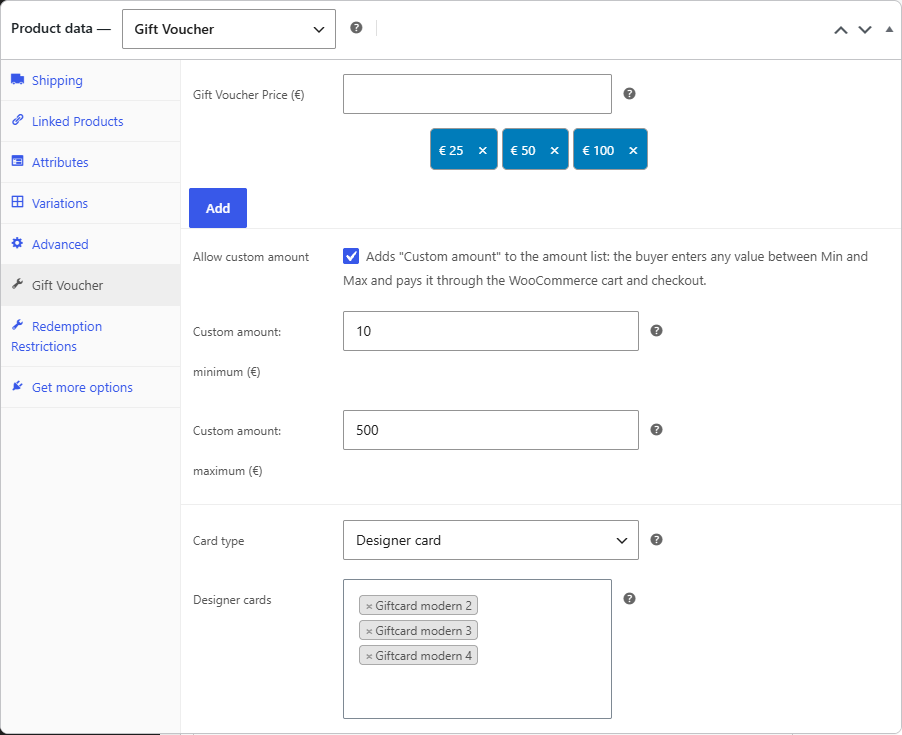
- Optional: turn on Allow custom amount and set a minimum and maximum. You can also offer custom amounts only.
- Optional: in the product’s Gift Voucher tab, set Card type to Designer card and pick one or more cards under Designer cards.
Card type
- Image card (default): the product picture on the standard card, as before version 5.2.0.
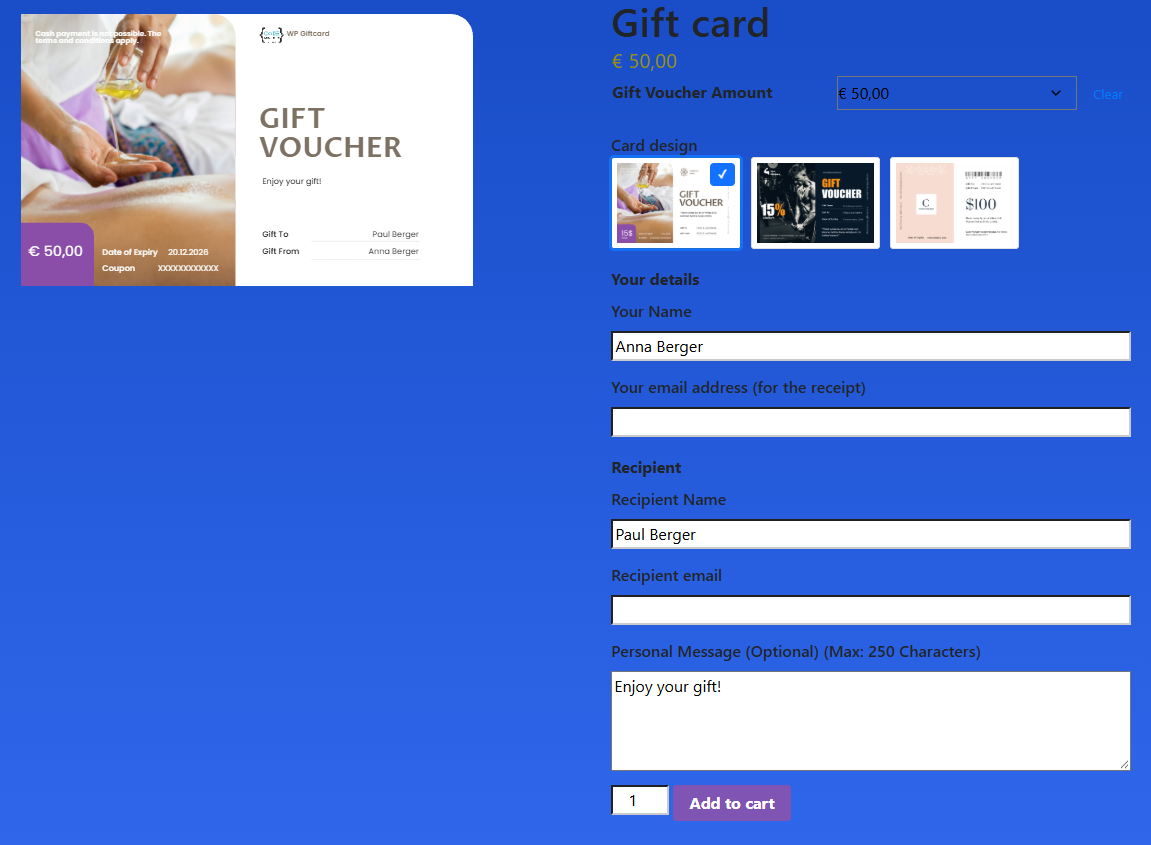
- Designer card: the buyer chooses one of the cards you picked. The first one is chosen from the start. The preview shows the buyer’s names, message and amount, custom amounts included. The buyer still chooses the amount: a card’s fixed price is not used here, and the card expires by the product’s expiry settings.
The basket, checkout, order screen and order emails show the chosen card. Create designer cards under Gift Cards first; a card you delete or switch to an image card is left out of the choice.
When the card is sent
The card is created when the order is marked Completed. WooCommerce normally leaves these orders on Processing, so check Settings → WooCommerce → Payment status Stripe:
- Processing (default): you mark each order Completed yourself.
- Completed: an order paid online is completed when the buyer reaches the thank-you page. If it contains other products, the whole order is completed too.
Orders paid by bank transfer, cash on delivery or cheque always wait until you mark them Completed.
Sell with the gift checkbox
- Go to Settings → WooCommerce and enable Product page gift checkbox.
- Under Show checkbox for products, keep all products or select some.
- Create at least one designer card under Gift Cards. Limit the choice with Template orientation filter and Allowed templates.
- Set Add Gift Card price to cart total:
- Enable: the buyer pays the product price plus the gift card price.
- Disable: the buyer pays the product price only.
The checkbox does not appear on Gift Voucher products. Express payment buttons are hidden while the box is ticked, so the gift details always reach the order. Show service name prints the product name above the message on the card.
Settings for both ways
These are under Settings → WooCommerce and are separate from the order form settings.
- Buying for: Someone Else (default), Both or Yourself. A buyer who buys for themselves is not asked for a recipient or a date, and receives the card by email.
- Allow Future Date: lets the buyer choose when the recipient gets the card. The date cannot be in the past or after the card expires. The buyer is emailed at once and the recipient on the chosen day.
- Buyer phone field: Off, Optional or Required. It is never printed on the card.
If an order is cancelled or refunded
When an order is cancelled, fully refunded or moved to the trash, its gift card is locked. It cannot be redeemed, its PDF link stops working and a scheduled email is not sent. If you complete or restore the order, the card works again.
A partial refund does not lock the card. Cards from orders refunded before version 5.2.0 are not changed.
Redeeming the cards
See Via WooCommerce for how customers use a card in the cart and at checkout.