images
  • Pricing
  • Demo
  • FAQ’s
  • Docs
  • Support
  • Login
Buy now

Staff redeem page

Staff redeem page

⌘K
  • Gift Cards Pro
    • Getting started
      • Download the free version
      • Buy and download Gift Cards Pro
      • Install the plugin and activate the license
      • System requirements and compatibility
      • User roles and permissions
    • Plugin pages and shortcodes
      • Designer cards page
      • Image cards page
      • Image cards in list view (gift items)
      • PDF preview pages
      • Payment successful and cancelled pages
      • Check voucher balance page
    • Plugin settings
      • General settings
      • Payment settings
      • WooCommerce settings
      • Selling gift cards with WooCommerce
      • Email settings
      • AI Backgrounds settings
      • Invoice settings
    • Design templates and gift items
      • Designer cards
      • Create a template with the builder
      • Generate backgrounds with AI
      • AI credits
      • Image cards
      • Gift items and packages
      • Categories
    • Display booking forms
    • Orders and vouchers
      • Order details
      • Manual orders
      • Email Center
      • Import and export
    • Redeem vouchers
      • Via WooCommerce
      • In person
      • Staff redeem page
    • FAQ
    • Video guide
    • Changelog
  • Codemenschen Werk Probe
    • Installation
    • Connect to Werk
    • What Werk sees
    • Werk AI and drafts
    • Visitor statistics
    • Requirements
    • FAQ
  • Autoupdate Plugins & Themes
    • Download the free version
    • Download the premium version
    • Installation Instructions
    • Plugin Settings
    • Video Guide
    • Changelog
  • Joomla Giftcard Extension – Premium download
    • Joomla Giftcard Extension – Document
  1. Home
  2. Docs
  3. Gift Cards Pro
  4. Redeem vouchers
  5. Staff redeem page

Staff redeem page

The staff redeem page lets your team look up vouchers and deduct amounts without using the WordPress admin, for example at the counter or for a booking system.
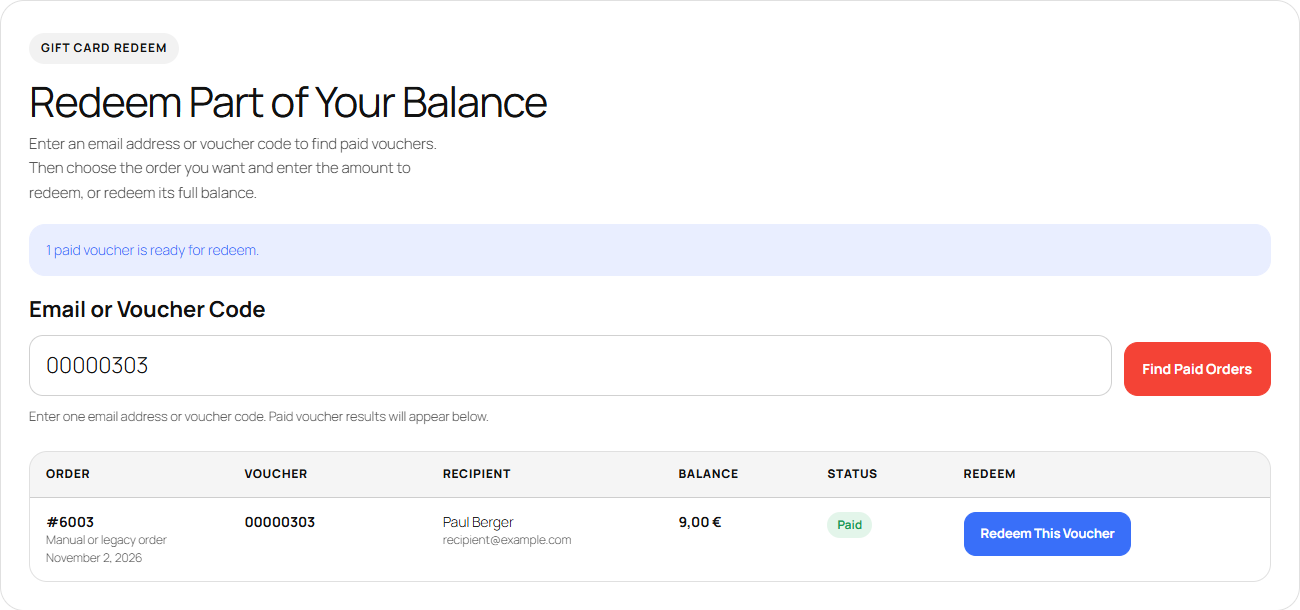
The staff redeem page with a voucher found by its code

Set it up

  1. Create a page and add [wpgv_partial_redeem].
  2. Give your team accounts with the Gift card staff role, or the Editor, Shop Manager or Administrator role (see User roles and permissions). Anyone else sees “You do not have permission to view this page.”
  3. Choose the options under Settings → General Settings → Order form.

Options

  • Staff redeem page: Enter an amount (part of the balance), Enter an amount, or redeem the full balance in one click or Full balance only (single-use vouchers). With the last one staff see one “Redeem full balance” button and no amount field. Redemption at the WooCommerce checkout is not affected.
  • Staff search by email: whether staff can find vouchers by the email address of the buyer or the recipient. Choose No, voucher code only so staff see only the vouchers whose code they were handed.

Redeem a voucher

  1. Enter an email address or voucher code and click Find Paid Orders. Only paid vouchers are listed.
  2. Click Redeem This Voucher on the voucher you want.
  3. Enter the amount and click Redeem Now, or use the full balance button if your setting offers it.

When Reject expired vouchers is on, vouchers past their expiry date are refused here too. Under Tools → Check Voucher Balance the voucher history shows who made each redemption.

Updated on November 4, 2026

Doc navigation

← In personFAQ →
images
    • Pricing
    • Demo
    • FAQ’s
    • Docs
    • Support
    • History
    • Blog