
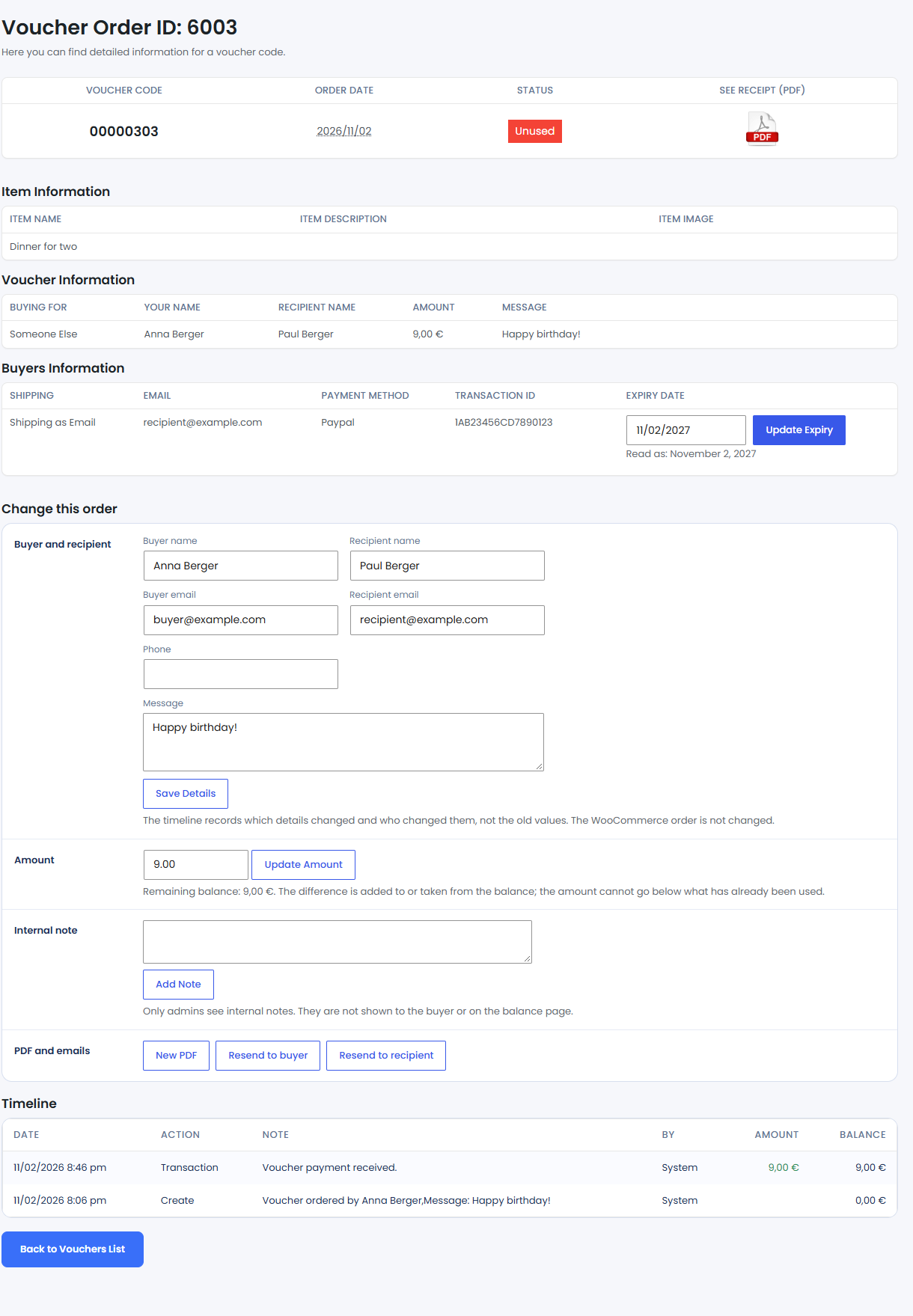
In Gift Cards Pro → Orders, click View Details on an order to open its details page. It shows the voucher code, status, item, voucher and buyer details, and lets you correct the order.
Expiry date
Change the date in Expiry Date and click Update Expiry. Read as shows how the plugin reads the date. If it cannot read a date, it says so, and the voucher never counts as expired; use the expiry date format from the settings.
Change this order
- Buyer and recipient: correct the buyer name, recipient name, both email addresses, phone and message, then click Save Details. The timeline records which details changed and who changed them, not the old values. A WooCommerce order is not changed.
- Amount: enter the new amount and click Update Amount. On a paid voucher the difference is added to or taken from the balance; the amount cannot go below what has already been used. On an unpaid order only the stored amount changes; a payment already started with the payment provider keeps its own amount.
- Internal note: click Add Note to keep a note on the order. Only admins see internal notes. They are not shown to the buyer or on the balance page.
- PDF and emails: New PDF creates the voucher PDF again, Resend to buyer and Resend to recipient send the email again. Use them after a change, so the customer gets the corrected voucher.
Timeline
The Timeline lists the payment, redemptions, amount and expiry changes, payment notes and internal notes, with who made each change. Payment notes also explain why an order is unpaid, for example when the payment page could not be opened or the buyer came back through the Cancel link. These notes do not change the order status, and the plugin never deletes an order by itself.